
Crew Tracking
1 Assignment Log (Assg Log)
There are two separate processes in the crew assignment log. The first is for the status of the Notification, and the second the status of the Confirmation. These flags can be set or unset in the right-click menu from the selected duty in Crew Tracking.
Additionally, changes for the period of time displayed in Crew Tracking can be confirmed via the right-click menu on the crew member's name selected on the Plan Board.
Note: This should be used with caution.
Each addition or deletion is noted in chronological order in the Assg log.
For each addition or deletion from a roster the default logic is to set the notification as required, however, when multiple changes are made or a notification is left for a crew member, but not confirmed, it is up to the individual crew scheduler to carefully check and manage the situation.
Note:The time frame shown in the log is controlled by the time frame displayed in the Crew Tracking.
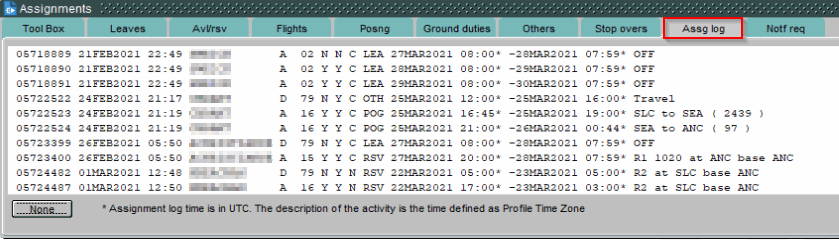
Fig. 1: Assignment Log
The information displayed is defined as follows:
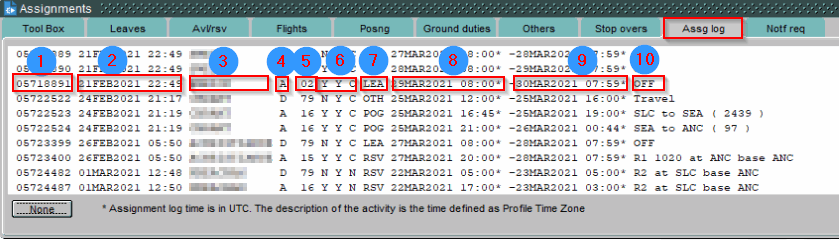
1. Record Number (unique ID).
2. Date/Time stamp of transaction.
3. User Name (Including crew members for requests)
4. Type of transaction (A= Add, D= Delete)
5. Assignment Reason Code
• numeric (the defaults are 01 = Added in Planning Mode, 02 = Added in Tracking Mode, 10 = Deleted - Unknown Reason)
6. 3 columns (From left to right)
• Assignment Status
• Y/N = Assignment Active (inactive assignments are not shown on the roster)
• P = Pending crew request
• S = Assignment does not match request
• Notification Required (Y/N)
• Default is always “Y” unless a circular event such as add/delete occurs.
Note: This field is dynamic. It reflects the present status of the requirement to notify (or not).
• Assignment Notified/Confirmed
• N = Not Notified
• Y = Notified but not Confirmed (left message, etc.)
• C = assignment confirmed.
7. Type of Assignment.
8. Date of Assignment.
9. Start/End Time of assignment.
10. Assignment details.
End of Document