
GENDEC
1 GENDEC
1.1 Introduction
Blue One can generate the General Declaration (GENDEC) document for each flight as needed. There is also a functionality to e-mail the document to the contacts configured in the Airport Administration and for the pilots to print copies at sign-in via the Blue One crew interface.
1.2 Setup
Several options are available for the configuration of the GENDEC form. These options need to be configured by Blue One Support.
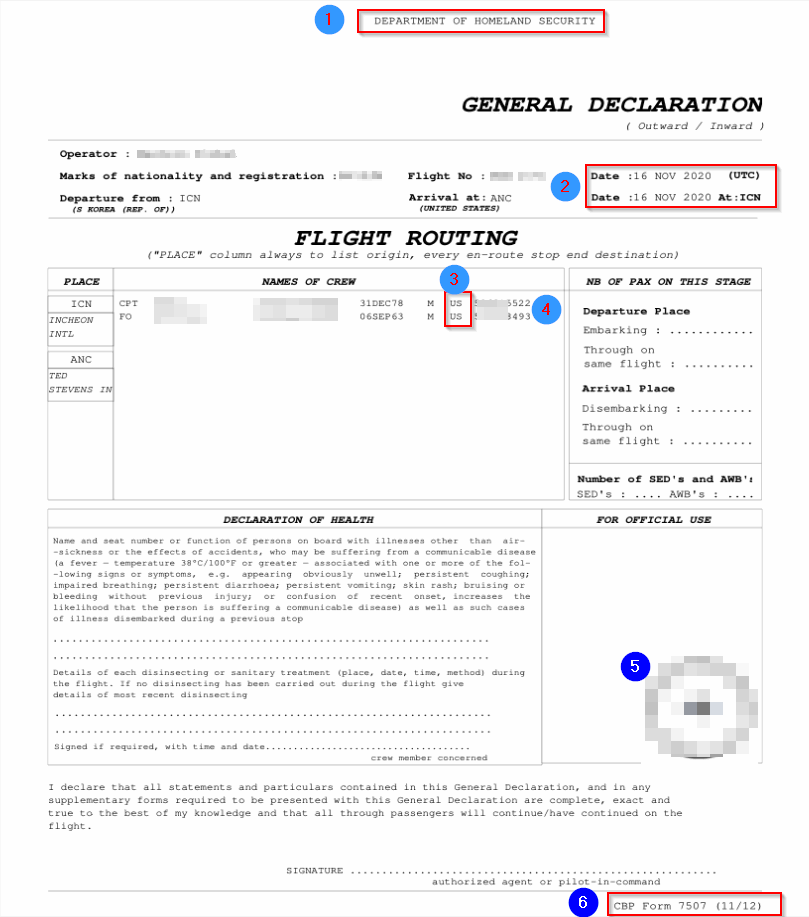
Fig. 1: GENDEC Example
1. A fixed header text can be added to the top of the form.
2. The departure and arrival dates can be based on either the Scheduled times or the Estimated Times.
3. The country code can be based on the issuing country of the passport or the nationality of the crewmember.
4. For crewmembers with multiple passports, the passport used can be the one chosen according to the logic below or “ALL” passports can be listed.
5. A company stamp can be added.
6. A fixed footer text can be added to the bottom of the form.
1.3 Passport Logic
Note: The requirements for Passports and Visas are defined in the Airport
Administration Module. Refer to the document for that module for further details.
In the case of multiple passports, the system considers the destination of the
flight, the settings configured in the Airport Administration as to requirements for
Visas and validity periods for that destination, the validity of the crew member’s
passport and/or visa, and the default setting, to determine which passport is
selected for use.
The logic is as follows:
• If there are passport and visa requirements configured for the destination in Airport Administration then the system will choose the passport that best fills the requirements. i.e. the passport with the required valid visa.
• If there are no requirements in the Airport Administration the passport marked as “default” will be used.
• If no passport is set as Default, then the one with the greatest validity will be used.
1.4 Generating the GENDEC
From the right-click menu for the flight in Aircraft Tracking / Reports select General Declaration or General Declaration by E-Mail.
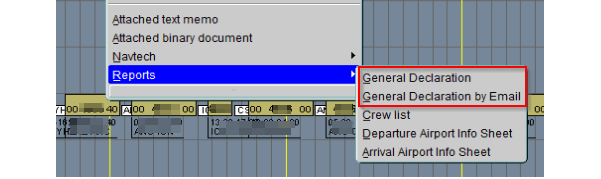
Fig. 2: Aircraft Tracking reports
Selecting General Declaration will generate a PDF file for printing or distributing.
Selecting General Declaration by Email will produce a dialog window containing the e-mail addresses configured for the flight’s destination in Airport Administration.
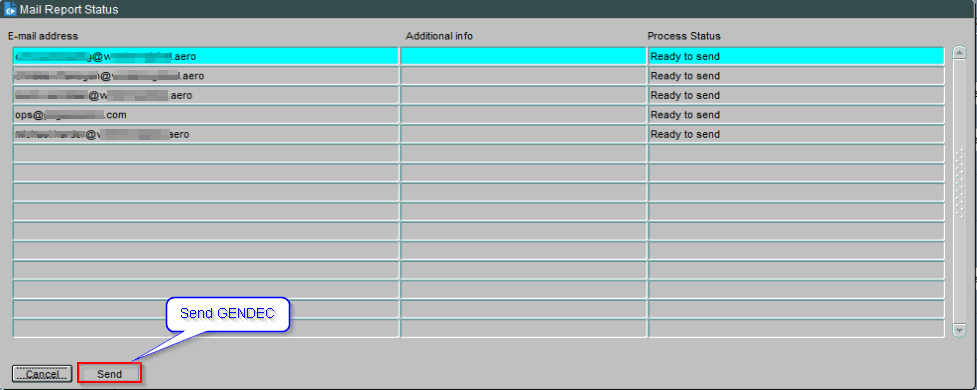
Fig. 3: Send GENDEC
Note: the crew members on the selected flight can also receive the GENDEC by email if configured by Blue One Support.
1.5 Print GENDEC in Crew Interface
There exists an option for a cockpit crew member to print a GENDEC for some specific destinations during sign-in.
In Airport Administration / Contacts, you can choose how many GENDECs are to be printed at departure and (or) arrival airport and if the flight trip has to contain a stop-over (STP tick box).
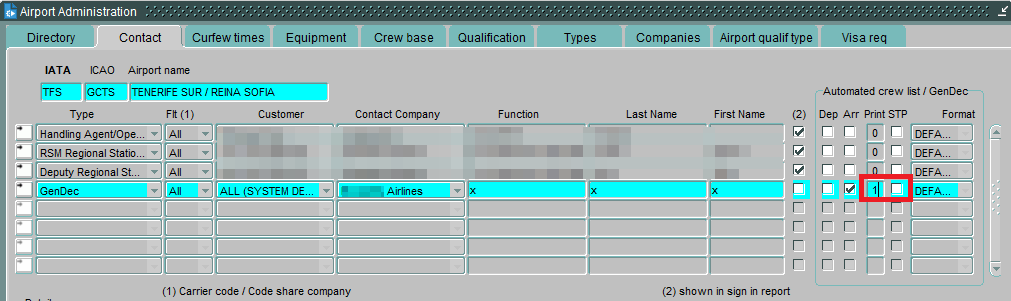
Fig. 4: Airport Administration Contacts
The cockpit crew members are able to print the GenDecs during sign-in and are reminded to do so if not done.
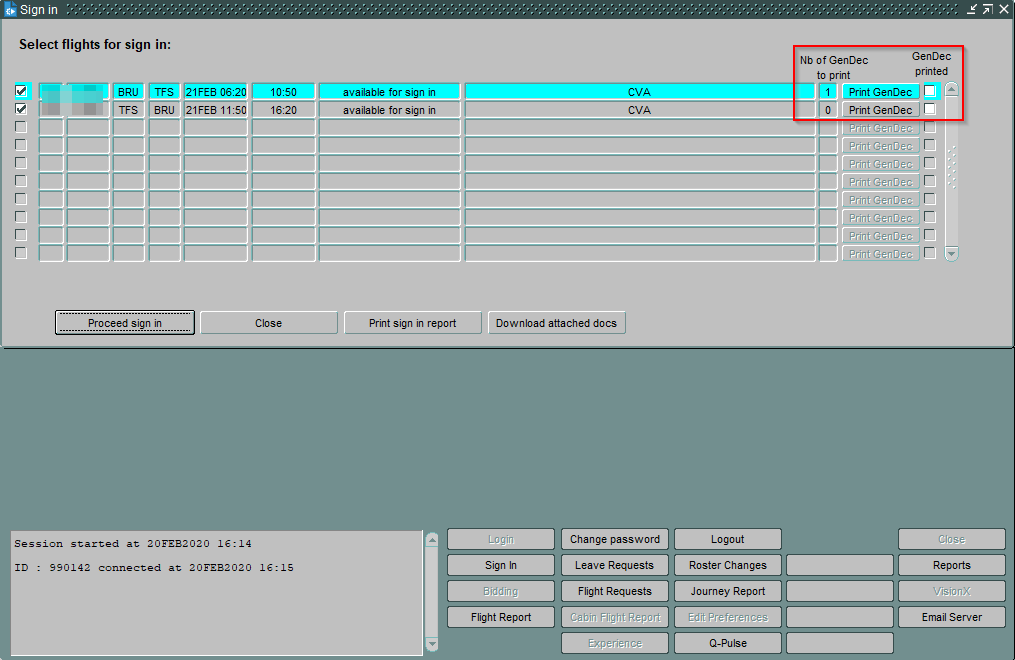
Fig. 5: Crew Interface
End of Document